WhatsApp QR Code Business: How to Create One Free
WhatsApp QR code business — this guide shows you how to create one free in under a minute, what pre-filled message to use, and where to place it for maximum impact.
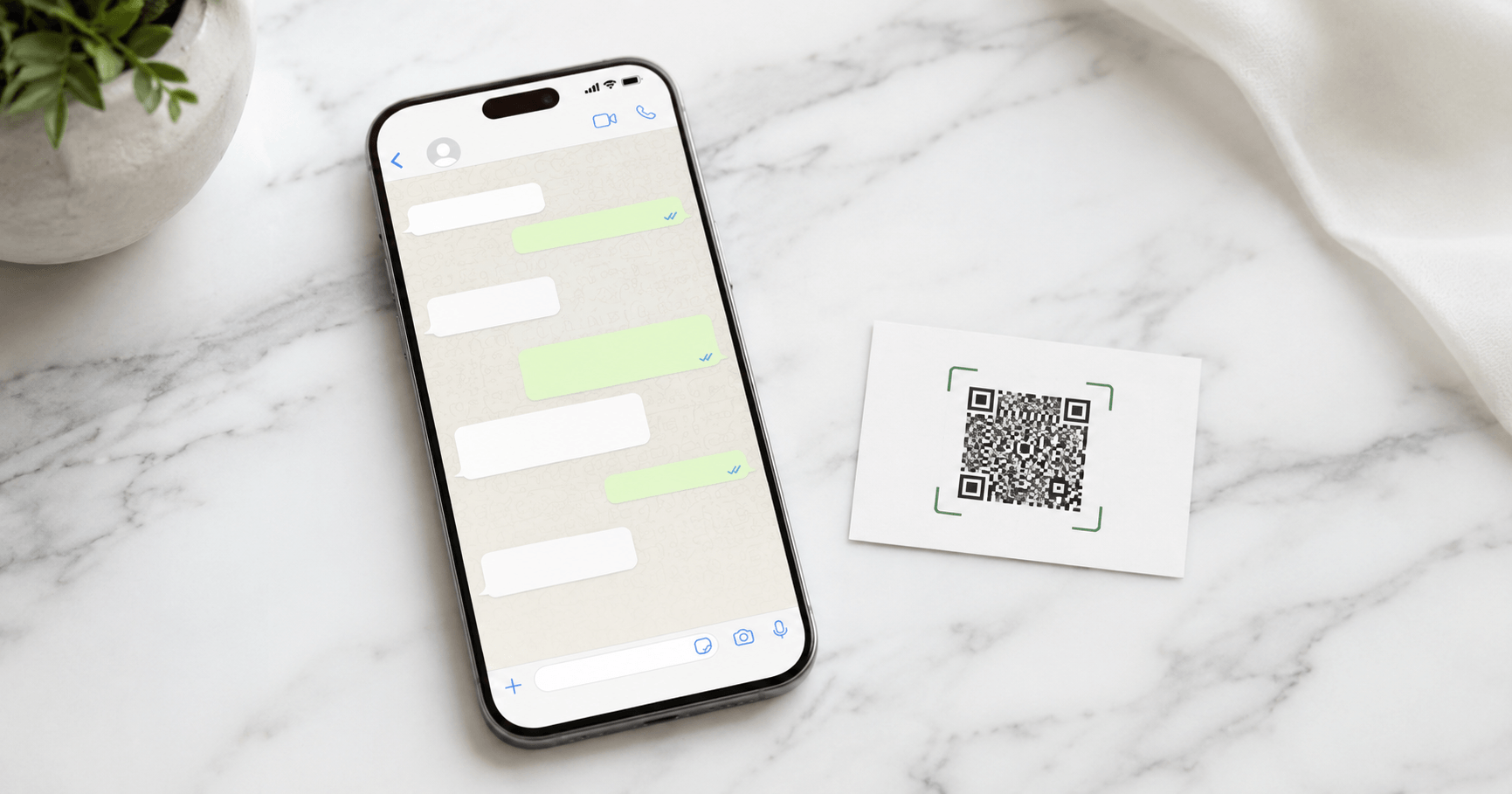
A WhatsApp QR code for your business lets customers start a conversation with you instantly — no saving your number, no searching for your contact. One scan and the chat opens. In this guide you’ll learn how to create one for free in under a minute, where to place it, and how to get the most out of it for your business.
Why Use a WhatsApp QR Code for Your Business?
WhatsApp has over 2 billion active users worldwide — for many businesses, especially in Latin America, Europe, Asia, and Africa, it’s the primary channel customers use to ask questions, place orders, and request support. A WhatsApp QR code for business removes every barrier between a potential customer and your chat window.
Zero friction contact
Customers reach you in one scan — no number saving, no typing, no searching. The lowest-friction way to start a conversation.
Higher conversion rate
The easier it is to contact you, the more people do it. A visible WhatsApp QR code consistently increases inbound messages from physical locations.
Pre-filled messages
Encode a custom opening message into the QR code — when someone scans it, the message is already typed and ready to send.
Completely free
No app subscription, no platform fees. WhatsApp is free, and generating the QR code with WebToolsStack is free — always.
How to Create Your WhatsApp QR Code (Step-by-Step)
The whole process takes under a minute. You only need your WhatsApp business phone number — no account registration required.
Open the WhatsApp QR Code Generator
Go to WebToolsStack’s free WhatsApp QR Code Generator. No account or sign-up required.
Select “WhatsApp” as the QR type
From the QR type selector, choose WhatsApp. This encodes your number in the correct format so the WhatsApp app opens directly.
Enter your phone number with country code
Type your full number including the country code — for example +1 555 123 4567 for the US or +57 300 123 4567 for Colombia. No spaces or dashes.
Add a pre-filled message (optional but recommended)
Enter a message that will appear pre-typed when someone scans — for example: “Hi! I’d like to know more about your services.” This removes friction and increases the chance they send it.
Generate and verify
Click Generate. Scan the QR code with your own phone to confirm it opens WhatsApp with the correct number and message before downloading.
Download in PNG and deploy
Download as PNG. Use it on printed materials, your website, social profiles, email signature — anywhere customers can see it.
Create your WhatsApp business QR code now
💬 Generate WhatsApp QR Code — Free No sign-up · No expiry · Download in PNG instantlyHow to Use a Pre-Filled Message Effectively
The pre-filled message feature is one of the most underused aspects of WhatsApp QR codes for business. When someone scans your code, the message appears already typed — they just tap Send. Here are proven examples by business type:
| Business type | Pre-filled message example |
|---|---|
| 🍽️ Restaurant | “Hi! I’d like to make a reservation.” |
| 🛍️ Retail / e-commerce | “Hi! I have a question about a product.” |
| 💼 Freelancer / consultant | “Hi! I’d like to discuss a project.” |
| 🏥 Health / wellness | “Hi! I’d like to book an appointment.” |
| 🏨 Hotel / accommodation | “Hi! I’d like to check availability.” |
| 🚗 Automotive / services | “Hi! I need to schedule a service.” |
The Link Format, and How to Get the Number Right
A WhatsApp QR code is just a QR code wrapped around an ordinary link. Knowing what that link looks like makes it obvious why some codes open a chat and others open an error.
The official format is:
https://wa.me/<number>?text=<message>
Write the number the way WhatsApp expects
This is where almost every broken link comes from. The number goes in full international format with nothing but digits: no plus sign, no spaces, no dashes, no brackets, and no leading zero from the local dialling format.
| How people write it | What goes in the link |
|---|---|
| +57 310 123 4567 | 573101234567 |
| (310) 123-4567 with country code 57 | 573101234567 |
| 0310 123 4567 — local format with a leading zero | 573101234567 — the zero is dropped |
| +1 (555) 010-1234 | 15550101234 |
That leading zero is the single most common mistake. Many countries write mobile numbers locally with a zero in front that exists only for domestic dialling. It is not part of the international number, and leaving it in produces a link to a number that does not exist.
The pre-filled message has to be encoded
Everything after ?text= travels inside a URL, so characters that mean something to a URL
cannot be typed in raw. Spaces, accented letters, question marks, ampersands and emoji all have to be
percent-encoded. A message written as “Hola, quiero información” becomes
Hola%2C%20quiero%20informaci%C3%B3n in the link.
Any generator worth using, including the one on this page, does that encoding for you. It matters when you are writing the link by hand or pasting one into an ad, a bio or an email signature — that is where an unencoded message quietly truncates at the first special character.
Reference: WhatsApp’s own click to chat documentation.
Where to Place Your WhatsApp QR Code
A WhatsApp QR code is only effective if customers find it at the right moment — when they’re ready to reach out. These are the highest-impact placements:
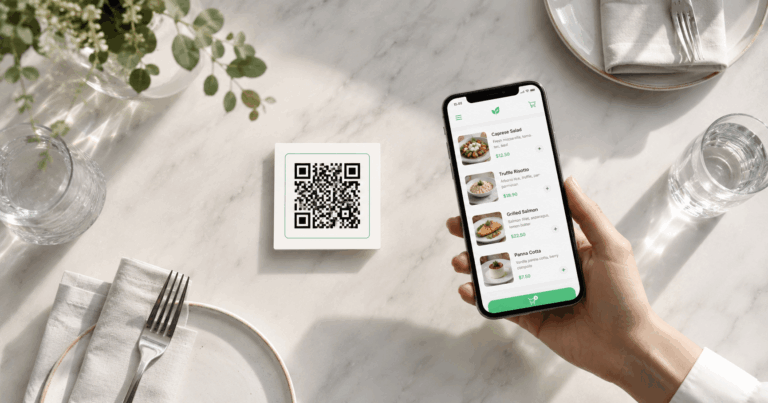
Place at eye level so people outside can scan before entering. Perfect for after-hours inquiries and reservations.
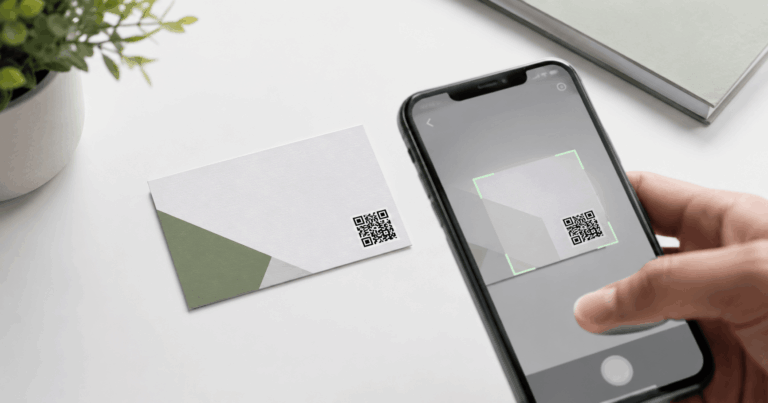
A WhatsApp QR code on the back of your card lets contacts message you instantly after meeting — much faster than saving a number manually.
Customers who just received your product are the most likely to have follow-up questions or repeat orders.
Add the QR code image to your email signature with “Chat with us on WhatsApp.” Mobile recipients can scan directly from their screen.
Post the QR code as a story or pinned post. Use it in your link-in-bio page alongside your other contact options.
A WhatsApp QR code on any printed piece turns passive marketing into a direct contact channel.
Tips to Get More Scans
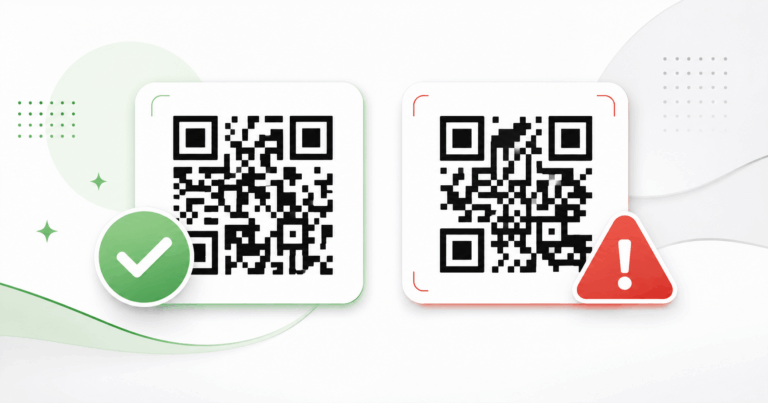
- QR code too small to scan easily
- No label explaining what the code does
- Placed in a low-visibility location
- Dark background behind the code
- No pre-filled message
- Links to a personal, not a business account
- Minimum 3cm × 3cm on printed materials
- Clear label: “Chat with us on WhatsApp”
- Eye-level placement at point of decision
- White or light background for contrast
- Pre-filled message that removes thinking
- Use WhatsApp Business for professional replies
Frequently Asked Questions
How do I create a WhatsApp QR code for my business?
Go to WebToolsStack’s WhatsApp QR Code Generator, enter your phone number with country code, add an optional pre-filled message, click Generate, and download the PNG. No account required — under a minute.
Does a WhatsApp QR code expire?
Static WhatsApp QR codes never expire. Your phone number is encoded directly into the QR pattern — no subscription or third-party server required to keep it working.
Can I add a pre-filled message to my WhatsApp QR code?
Yes. When generating your code you can include a custom pre-filled message that appears automatically in the chat when someone scans — for example “Hi, I’d like to know more about your services.”
Where should I place my WhatsApp QR code?
The most effective placements are: storefront windows, business cards, product packaging, email signatures, social media profiles, flyers, and menus — anywhere customers are most likely to want to reach you quickly.
Do I need WhatsApp Business to use a QR code?
No. A WhatsApp QR code works with any account — personal or business. However, WhatsApp Business is strongly recommended for handling customer inquiries as it adds auto-replies, business hours, and a product catalog.
Start Receiving More WhatsApp Messages Today
A WhatsApp QR code for your business is one of the simplest and highest-impact tools you can add to your customer contact strategy. It takes under a minute to create, costs nothing, and never expires.
Generate yours now, add it to your storefront, business cards, and social profiles — and make it easier for customers to reach you instantly.
Create Your WhatsApp Business QR Code — Free
No account · No watermark · No expiry · Download in PNG
💬 Generate WhatsApp QR Code Now