How to Add a QR Code to a Business Card (Free & Easy)
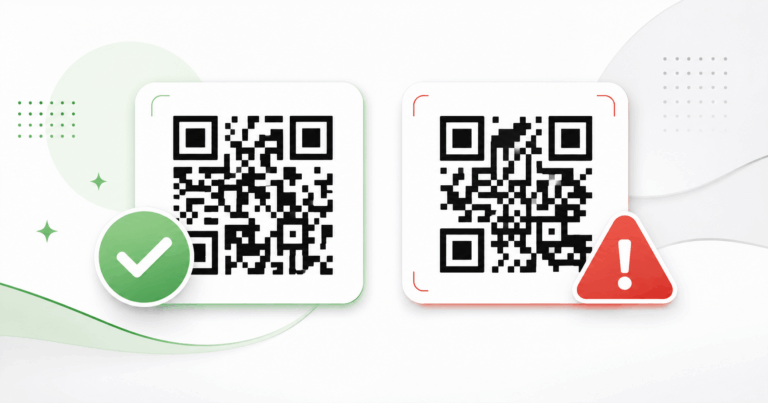
QR code business card — this guide shows you exactly what to link to, how to generate your code for free, and how to place it so it always scans correctly.
Learn more about how QR codes work according to Wikipedia.
A QR code on a business card turns a piece of paper into an interactive experience — linking directly to your website, LinkedIn profile, WhatsApp, or full contact details. In this guide you’ll learn exactly what to link to, how to generate the code for free, and how to place it on your card so it always scans correctly.
Why Add a QR Code to Your Business Card?
Business cards have one fundamental limitation: space. You can’t fit your full portfolio, all your social profiles, or your complete contact details onto a 3.5 × 2 inch card. A QR code on a business card solves that by bridging the physical card with your full digital presence.
Instant digital contact
One scan saves your contact directly to someone’s phone — no manual typing of email addresses or phone numbers.
Links to anything
Website, portfolio, LinkedIn, WhatsApp, booking page — one QR code can lead anywhere you want.
Update without reprinting
If you host your content at a stable URL, you can update what’s there without generating a new QR code or reprinting cards.
Stands out professionally
A well-designed business card QR code signals digital awareness — a small detail that makes a real impression.
What Should Your Business Card QR Code Link To?
This is the most important decision. Choose based on what your contact actually needs to do after meeting you.
| Destination | Best for | Why it works |
|---|---|---|
| 🌐 Website or portfolio | Freelancers, creatives, agencies | Shows your work immediately after the meeting |
| 👤 LinkedIn profile | Corporate professionals, job seekers | Lets people connect on LinkedIn instantly without searching your name |
| 📇 vCard / digital contact card | Anyone who wants to be saved to contacts fast | One tap saves name, phone, email, and company to their phone |
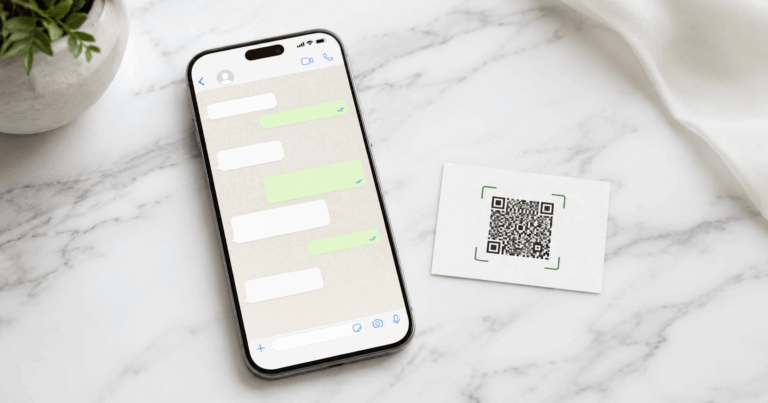
| 💬 WhatsApp direct chat | Sales, customer service, small business | Opens a chat immediately — lowest friction for follow-up |
| 🔗 Link-in-bio page | Content creators, consultants | One page with all your links — website, social, booking, email |
| 📅 Booking / calendar page | Consultants, coaches, service providers | Lets people book a meeting on the spot after a conversation |
Step-by-Step: Generate and Add Your QR Code
Choose what to link to
Decide on your destination URL. Make sure it’s live, mobile-friendly, and won’t change after you print the cards.
Open the free QR code generator
Go to WebToolsStack’s QR Code Generator. No account needed — works instantly in your browser.
Select the right QR type
Choose URL for websites and LinkedIn, vCard for contact details, or WhatsApp for direct messaging.
Enter your information and generate
Paste your URL or fill in your contact details. Click Generate and scan it with your phone to verify it works correctly.
Download in PNG
Download your QR code as a PNG file. This format works for Canva, Adobe Express, Vistaprint, and most card design tools.
Add to your card design
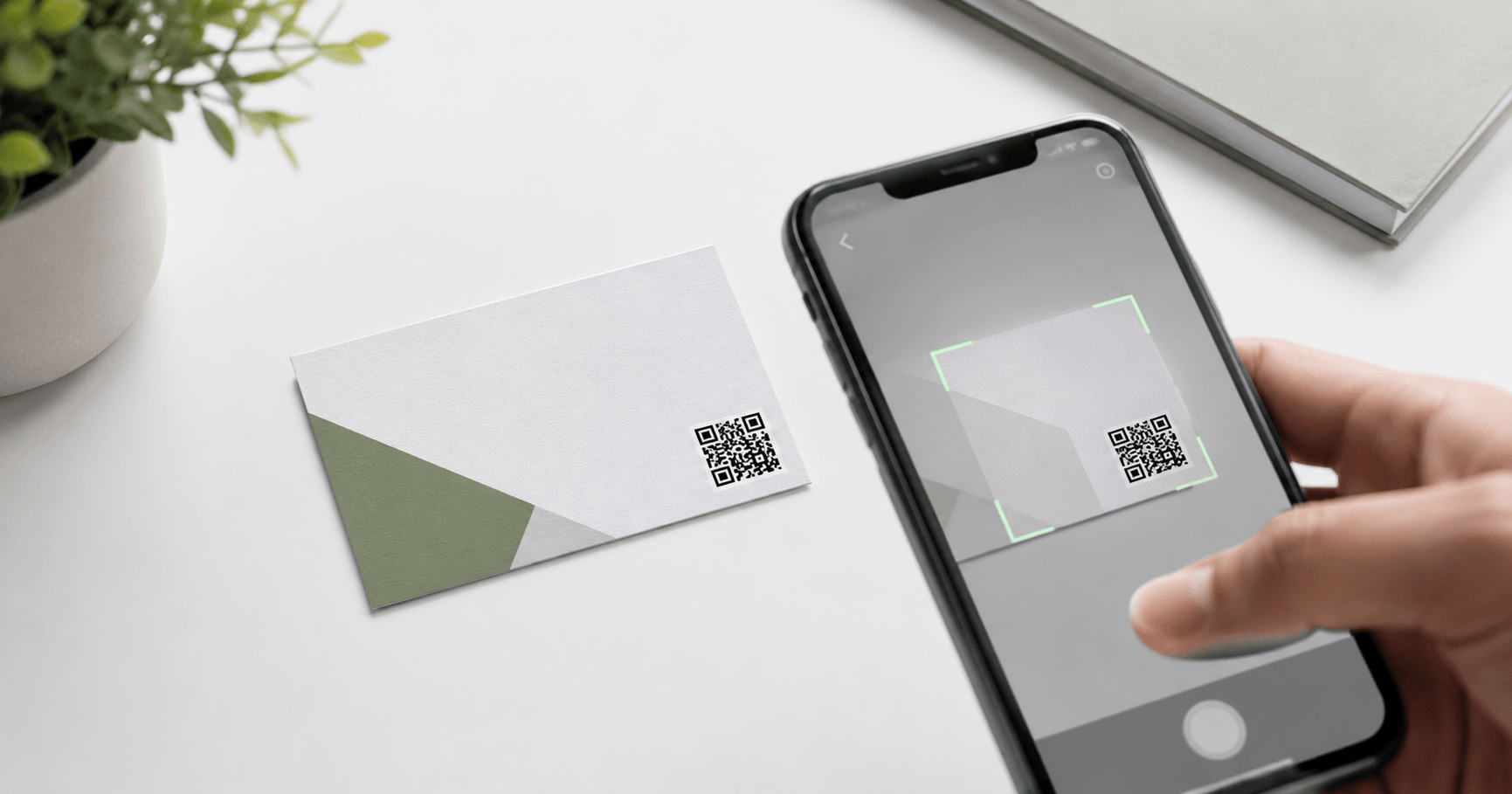
Import the PNG into your card design tool. Place it in a corner or on the back. Keep it at least 2cm × 2cm with adequate white space around it.
Test before printing
Scan on both an iPhone and an Android device before sending to print. Verify the destination loads correctly and is mobile-optimized.
Generate your business card QR code now
🔳 Create Free QR Code No sign-up · No expiry · Download in PNG instantlyDesign Tips for Business Card QR Codes
A QR code that doesn’t scan is worse than no QR code at all. Follow these rules to make sure yours always works:
Smaller than this and many cameras struggle. Aim for 2.5cm × 2.5cm if you have space.
QR codes need clear white space on all four sides. Don’t crop the code tightly to the edge of the card.
Dark code on a light background is the most reliable. Avoid dark card backgrounds or patterned surfaces behind the QR code.
Keeps the front clean and professional. Most people look at the back for secondary information anyway.
“Scan to connect” or “View my portfolio” tells people what to expect and increases scan rates significantly.
Upload the highest resolution PNG available to your print service. Blurry or pixelated QR codes fail to scan consistently.
Why Some Cards Need a Bigger Code Than Others
A blanket “2cm minimum” works most of the time, but it hides the reason codes fail. The real variable is how much data you encoded. Every extra character adds modules — the little black squares — and more modules in the same printed area means each one is physically smaller and harder for a camera to resolve.
This is why vCard codes are the ones that fail on business cards. A short link like
yoursite.com/me produces a sparse, forgiving code. A full vCard with name, two phone numbers,
an email, a company and a job title produces a dense one that needs noticeably more printed space to stay
scannable at the same size.
Error correction: the setting nobody changes
QR codes carry redundant data so they still scan when part of the code is damaged, smudged or covered. There are four levels, defined in the QR standard:
| Level | Damage it can survive | What it costs you |
|---|---|---|
| L | About 7% | Smallest, sparsest code — fine in clean conditions |
| M | About 15% | The usual default, and a sensible one |
| Q | About 25% | Denser code for the same data |
| H | About 30% | Densest — needed if you place a logo over the centre |
Higher correction is not free: the redundant data makes the code bigger and denser, so you trade printed size for robustness. Level H exists mainly so a logo can cover part of the code without breaking it — if you are not doing that, M is the right choice.
Size it by scanning distance, not by habit
The practical rule used across the industry is 10:1: the code should be about one tenth of the distance it will be scanned from. A business card held at roughly 15–20cm therefore wants a code of about 1.5–2cm, which is where the common advice comes from. A poster read from 3 metres needs 30cm.
And leave the margin alone. The QR standard asks for a quiet zone of four modules of blank space on every side. Designers crop it because the code looks like it ends at the black squares. It does not, and a tightly cropped code is one of the most common reasons a perfectly valid QR fails to scan.
Reference: Denso Wave, the inventor of the format, on QR code error correction.
Common Mistakes to Avoid
- Link to a page that isn’t mobile-optimized
- Use a dynamic QR code that expires when you stop paying
- Make the QR code smaller than 2cm × 2cm
- Place the code on a dark or patterned background
- Skip testing before sending to print
- Link to a URL that might change or go offline
- Link to a fast, mobile-friendly page
- Use a free static QR code — works forever
- Keep it at 2.5cm × 2.5cm minimum
- Use a white or light background behind the code
- Test on iPhone and Android before printing
- Use a permanent, stable URL
Frequently Asked Questions
What should a QR code on a business card link to?
The most useful options are: your website or portfolio, a digital vCard contact card, your LinkedIn profile, or a WhatsApp chat link. A vCard QR code is the best default — it saves your full contact details to their phone in one tap.
What size should a QR code be on a business card?
A minimum of 2cm × 2cm (about 0.8 inches) is recommended. Aim for 2.5cm × 2.5cm if space allows. Smaller codes are harder to read, especially in low light.
Do QR codes on business cards expire?
Static QR codes never expire. The data is permanently encoded into the pattern — no subscription needed. As long as the destination URL remains active, your code works indefinitely.
Can I create a QR code for my business card for free?
WebToolsStack’s QR Generator is completely free — no account, no watermarks, no expiry. Generate, download in PNG, and add it to your card design in minutes.
Should I put the QR code on the front or back of the business card?
The back is usually better. It keeps the front clean and professional. If you place it on the front, use a corner so it doesn’t compete with your name and contact details.
Ready to Upgrade Your Business Card?
Adding a QR code to your business card takes less than five minutes and costs nothing. Generate a free static code, place it on the back with adequate white space, add a short label, and test before printing.
That small square can link to your entire professional presence — and it will keep working as long as your destination URL does.
Create Your Business Card QR Code — Free
No account · No watermark · No expiry · Download in PNG
🔳 Generate QR Code Now