How to Count Words Online, in Google Docs & Word (Compared)
How to count words online — this guide compares the fastest methods across Google Docs, Microsoft Word, and free online tools, so you always know your word count instantly.
For content length guidelines, see word count standards on Wikipedia.
Whether you’re writing an article, an essay, a meta description, or a social media post — knowing your word count matters. In this guide you’ll learn how to count words online instantly, how word count works in Google Docs and Microsoft Word, and when each method makes the most sense.
How to Count Words Online (Fastest Method)
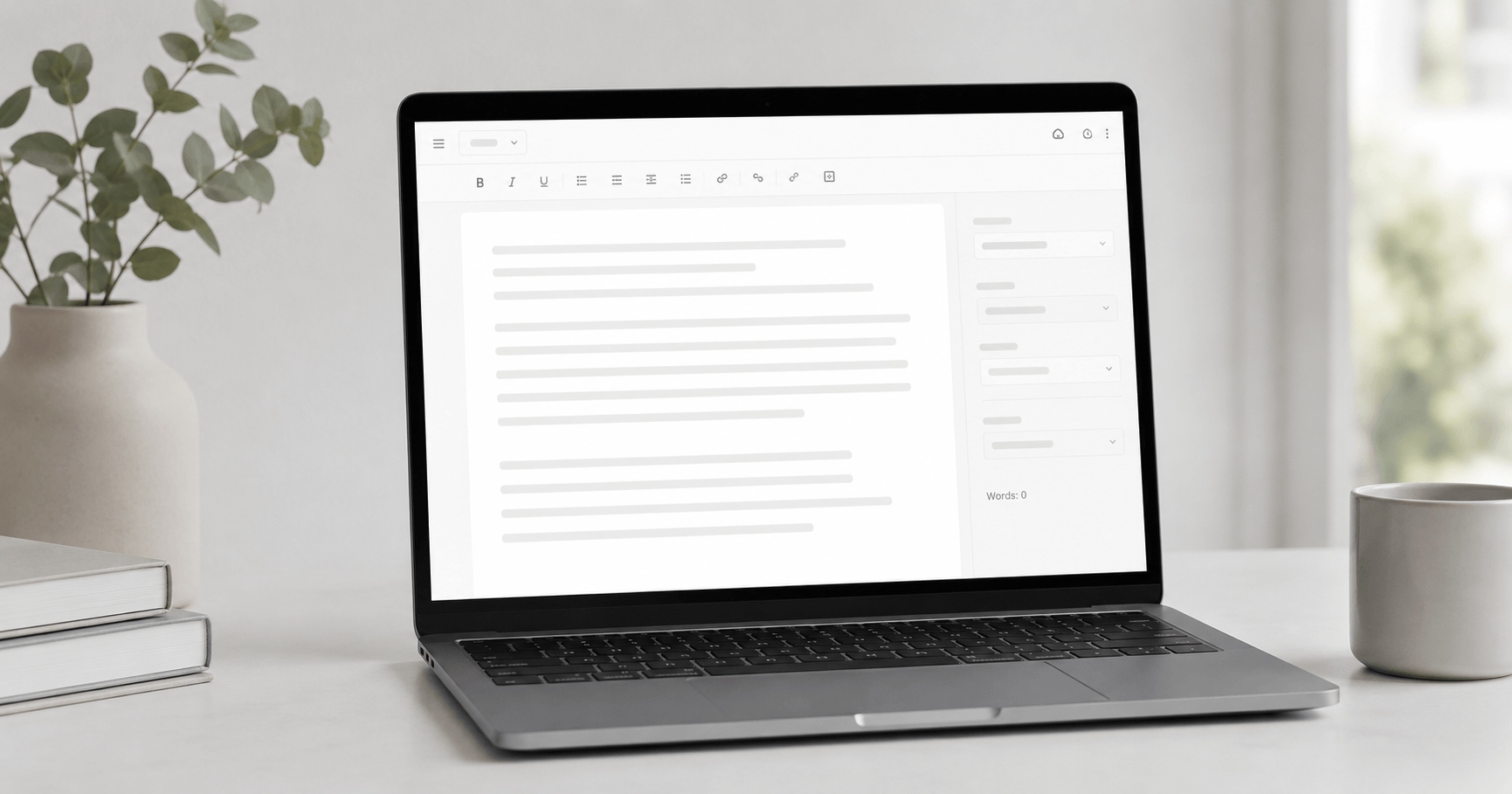
The fastest way to count words is to use a free online word counter — no app, no login, no waiting. It works on any device and gives you more data than most built-in document tools.
Open the free Word Counter
Go to WebToolsStack’s free Word Counter. No account or installation required — works instantly in your browser.
Paste or type your text
Paste any text — an article, essay, email, ad copy, social post, or anything else. The counter updates in real time as you type.
Read your results instantly
You’ll see: word count, character count (with and without spaces), sentence count, paragraph count, and estimated reading time — all at once.
Count your words right now — free
📝 Open Free Word Counter No sign-up · Real-time counting · Works on any deviceHow to Check Word Count in Google Docs
Google Docs has a built-in word count feature that’s easy to access once you know where it is.
Press Ctrl + Shift + C on Windows/Linux, or Cmd + Shift + C on Mac. A dialog box shows total words, characters with spaces, and characters without spaces.
Go to Tools → Word count in the top menu. Same dialog box with word, character, and page counts.
In the Word count dialog, check “Display word count while typing” — a small counter will appear in the bottom-left corner of the document that updates live.
Highlight any portion of text first, then open Word count. Google Docs will show the count for both the selection and the full document.
Tap the three-dot menu (⋮) in the top right, then tap Word count. Available on both iOS and Android.
How to Check Word Count in Microsoft Word
Microsoft Word has the most detailed built-in word count of any desktop application — but it requires knowing where to look.
The word count appears in the bottom-left status bar of Word by default — next to the page number. It updates as you type. If it’s not visible, right-click the status bar and enable Word Count.
Go to Review → Word Count for a full dialog showing: words, characters (with and without spaces), paragraphs, lines, and pages.
Highlight a section of text and the status bar updates to show the word count for that selection only — useful for checking specific sections of a long document.
In the Word mobile app, tap the edit icon, then go to Home → Review → Word Count. The layout varies slightly between iOS and Android versions.
Comparison: Which Word Count Method Is Best?
Each method has strengths depending on what you’re writing and what metrics you need. Here’s the full comparison:
| Feature | Online Word Counter | Google Docs | Microsoft Word |
|---|---|---|---|
| Word count | ✔ Yes | ✔ Yes | ✔ Yes |
| Character count | ✔ With & without spaces | ✔ With & without spaces | ✔ With & without spaces |
| Sentence count | ✔ Yes | ✗ No | ✗ No |
| Paragraph count | ✔ Yes | ✗ No | ✔ Yes |
| Reading time estimate | ✔ Yes | ✗ No | ✗ No |
| Works without software | ✔ Browser only | ✔ Browser only | ✗ Requires install |
| Works on any device | ✔ Yes | ✔ Yes | ⚠ App required on mobile |
| No account needed | ✔ Yes | ✗ Google account | ✗ Microsoft account |
| Real-time counting | ✔ Yes | ✔ Optional | ✔ Status bar |
Why Two Tools Give Different Counts
Paste the same paragraph into three word counters and you can get three numbers. None of them is malfunctioning. There is no single agreed definition of a word, so every tool draws the line somewhere slightly different.
Here is where they disagree:
| Case | The disagreement |
|---|---|
| Hyphenated words | Is state-of-the-art one word or four? Most tools say one, some split on the hyphen. |
| Numbers and dates | 2026 and 15/03/2026 may be counted as words, skipped entirely, or counted differently from each other. |
| Contractions | don’t is normally one word, but a tool that splits on the apostrophe makes it two. |
| URLs and emails | example.com/page can be one word, two, or three depending on whether the tool splits on punctuation. |
| Chinese, Japanese, Thai | These languages do not separate words with spaces, so a space-based counter reports almost nothing. Tools built for them count characters instead. |
| Headers, footnotes, captions | Word processors may include or exclude these. It is why a document’s count changes when you tick “include textboxes and footnotes”. |
Which one should you trust? The one used by whoever is checking. If an editor, a university or a client has a limit, their tool decides — ask what they use and count in that. For everything else the differences are a percent or two, well inside the margin of any sensible limit. What matters is measuring the same way every time, not finding the one true number.
Why Word Count Matters for Different Content Types
Word count isn’t just a number — it’s a planning tool. Different content types have different optimal lengths based on reader behavior, platform limits, and SEO best practices:
| Content type | Recommended word count | Why |
|---|---|---|
| 📱 Tweet / X post | Under 280 characters | Platform character limit |
| 📘 Facebook post | 40–80 words | Engagement drops sharply above 80 words |
| 🔍 Meta description | 150–160 characters | Google truncates beyond this in search results |
| 📰 Blog post (informational) | 1,000–1,500 words | Enough depth to rank; not so long it loses readers |
| 📖 Long-form / pillar content | 2,000–3,500 words | Covers topic comprehensively; earns backlinks |
| 📧 Email newsletter | 200–500 words | Respects reader’s time; higher click-through |
| 🎓 Academic essay | Varies by assignment | Usually 500–5,000 words depending on level |
| 📣 Google Ads headline | Under 30 characters | Platform character limit per headline |
Frequently Asked Questions
How do I count words online for free?
Paste your text into WebToolsStack’s free Word Counter. It instantly shows word count, character count, sentence count, paragraph count, and estimated reading time — no account required, works on any device.
How do I check word count in Google Docs?
Press Ctrl + Shift + C (Windows) or Cmd + Shift + C (Mac), or go to Tools → Word count. You can also enable a live counter that stays visible while you type by checking “Display word count while typing” in the dialog.
How do I check word count in Microsoft Word?
The word count appears in the bottom status bar of Word by default. For a full breakdown (characters, paragraphs, lines), go to Review → Word Count. Highlight a selection first to count only that portion.
Why is my online word count different from Google Docs?
Different tools count words slightly differently — hyphenated words, numbers, URLs, and special characters may be handled differently. The difference is usually 1–3 words and doesn’t affect practical use.
Can I count characters as well as words?
Yes. WebToolsStack’s Word Counter shows character count both with and without spaces — essential for meta descriptions, Twitter posts, Google Ads, and SMS messages with character limits.
The Right Tool for the Right Job
If you’re writing inside Google Docs or Word, use their built-in counters — they’re fast and convenient. But if you need to count words from any other source, need reading time estimates, or want sentence-level data for SEO writing, an online word counter gives you everything in one place with zero setup.
Count Your Words Free — Instantly
Words · Characters · Sentences · Reading time · No account needed
📝 Open Free Word Counter