How to Convert PNG to JPG Without Losing Quality (Free)
Convert PNG to JPG free online — this guide shows the fastest methods on any device, what happens to transparency, and how to minimize quality loss.
Need to convert PNG to JPG free online — fast, without installing software? You’re in the right place. This guide covers the quickest method using a free browser tool, plus how to do it on Windows, Mac, and in Photoshop when you need more control over quality settings.
Convert PNG to JPG Online — Free & Instant
The fastest way to convert PNG to JPG free online is to use a browser-based converter — no software installation, no account, and your file never leaves your device.
Open the free Image Converter
Go to WebToolsStack’s free Image Converter. Works in any browser on any device — no sign-up required.
Upload your PNG file
Click to upload or drag and drop your PNG image. The converter processes everything locally in your browser — your image is not uploaded to any server.
Select JPG as the output format
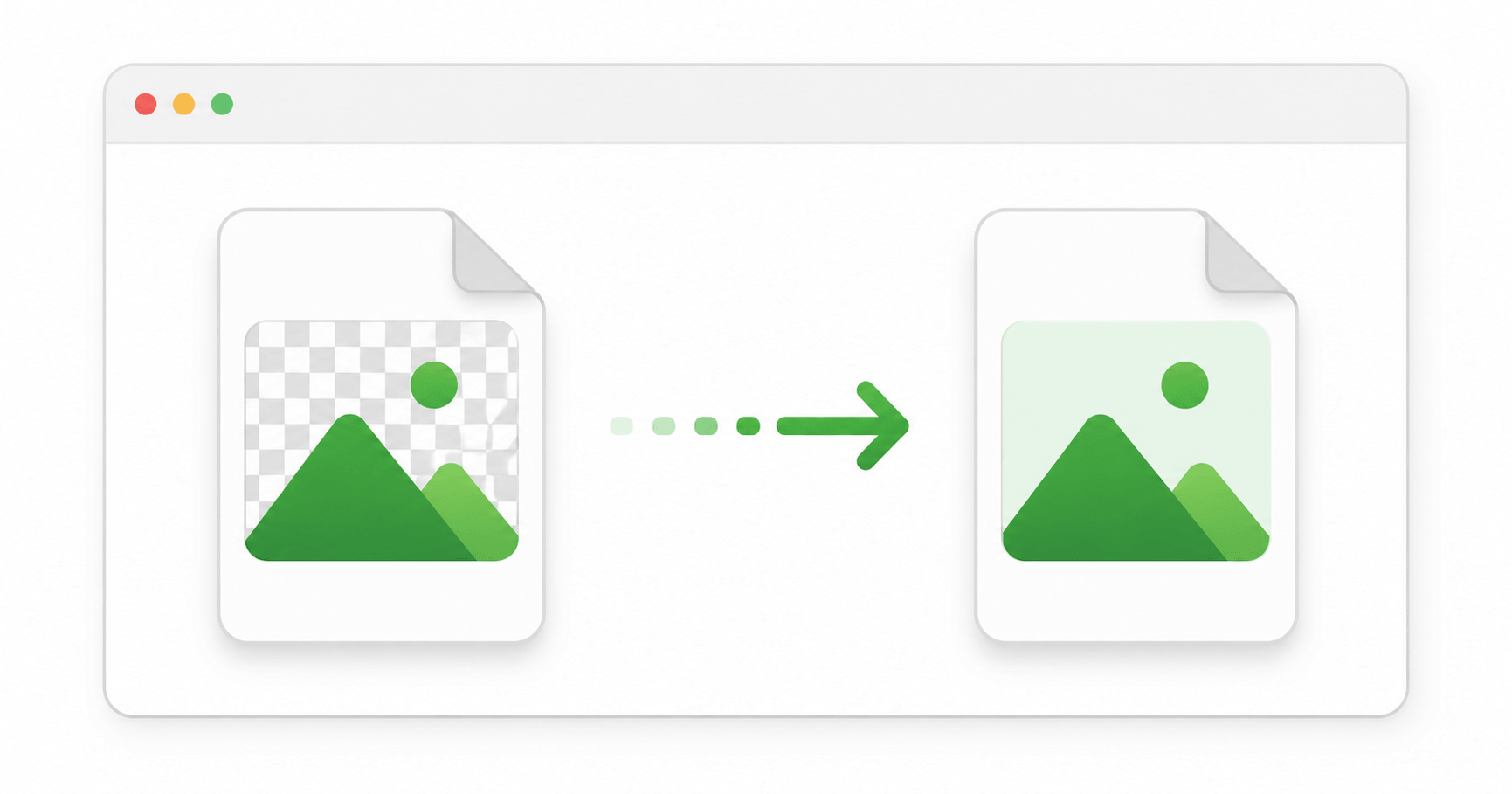
Choose JPG from the output format options. If your PNG has a transparent background, it will be filled with white in the JPG output.
Convert and download
Click Convert and download your JPG file instantly. The conversion takes seconds regardless of image size.
Convert PNG to JPG now — free & instant
🖼️ Convert PNG to JPG — Free No sign-up · Browser-based · No file uploads to serversHow to Convert PNG to JPG on Windows
Windows has two built-in methods that don’t require any additional software:
Right-click the PNG file → Open with → Paint. Then go to File → Save as → JPEG picture. Choose a location and click Save. Done in under 30 seconds.
Open the PNG in the Photos app → click the three-dot menu (⋮) → Save as → change the file type to JPEG → Save.
Changing a file’s extension from .png to .jpg does NOT convert it — it just confuses apps. Always use a proper conversion method.
How to Convert PNG to JPG on Mac
Mac’s Preview app makes PNG to JPG conversion straightforward with quality control:
Open the PNG in Preview
Double-click the PNG file — it opens in Preview by default on Mac.
Go to File → Export
In the top menu, click File then Export (not “Export as PDF”).
Select JPEG from the Format dropdown
In the Export dialog, click the Format dropdown and choose JPEG. A quality slider appears — drag it to your preferred level.
Adjust quality and save
Set the quality slider to 80-90% for the best balance between file size and visual quality. Click Save.
How to Convert PNG to JPG in Photoshop
Photoshop gives you the most control over quality and compression. Use this method when you need to convert a PNG to JPG at a specific quality level for professional output:
Go to File → Open and select your PNG file.
Go to File → Export → Export As. Select JPG as format and set quality between 80-90 for optimal results.
Go to File → Save As, choose JPEG from the format dropdown, and a quality dialog (0-12) appears. Setting 10-12 gives maximum quality.
If your PNG has multiple layers or transparency, Photoshop will ask you to flatten the image before saving as JPG. Click Flatten to proceed — this fills transparent areas with white.
How to Minimize Quality Loss When Converting PNG to JPG
Since JPG uses lossy compression, some quality loss is unavoidable — but you can minimize it significantly with these practices:
- Set JPG quality to 80–90% — optimal balance
- Convert from the original PNG, not a previously compressed version
- Use the online converter for quick conversions
- Use Photoshop or Preview (Mac) when you need quality control
- Keep the original PNG if you’ll need to re-edit later
- Converting at quality below 70% — visible artifacts
- Re-saving a JPG as JPG multiple times — cumulative quality loss
- Converting logos and text-heavy graphics to JPG — use PNG instead
- Renaming the file extension without actual conversion
- Using minimum quality settings to save space on important images
What Happens to Transparency When Converting PNG to JPG?
This is the most important thing to know before converting: JPG does not support transparency. If your PNG has a transparent background, that transparency will be replaced with a solid color (usually white) when converted to JPG.
| PNG background | Result after JPG conversion | What to do |
|---|---|---|
| Transparent background | Filled with white | Keep as PNG if you need transparency |
| White background | Stays white — no visible change | Safe to convert to JPG |
| Colored background | Stays the same color | Safe to convert to JPG |
| Logo on transparent background | Logo on white background | Keep as PNG for use on colored surfaces |
Should You Convert to WebP or AVIF Instead?
Before converting a PNG to JPG, it is worth asking whether JPG is the right destination at all. If the image is headed for a website, it usually is not.
Converting PNG to JPG costs you transparency and introduces lossy artefacts, and you only get a moderate size reduction in return. WebP and AVIF give you a bigger reduction and keep transparency: WebP files run 25–35% smaller than JPG at comparable quality, and AVIF around 50% smaller. AVIF is now supported by browsers covering roughly 95% of global traffic, and WebP by every current browser.
Convert to JPG when the file has to be universally readable — email attachments, print shops, older software, forms that only accept JPG, or a platform that rejects anything else. Convert to WebP or AVIF when the image is going on a site you control and you care about load time. For the difference between the formats themselves, see PNG vs JPG.
Frequently Asked Questions
How do I convert PNG to JPG for free online?
Go to WebToolsStack’s free Image Converter, upload your PNG, select JPG as output, and download the result. No account required — under a minute, browser-based.
Does converting PNG to JPG lose quality?
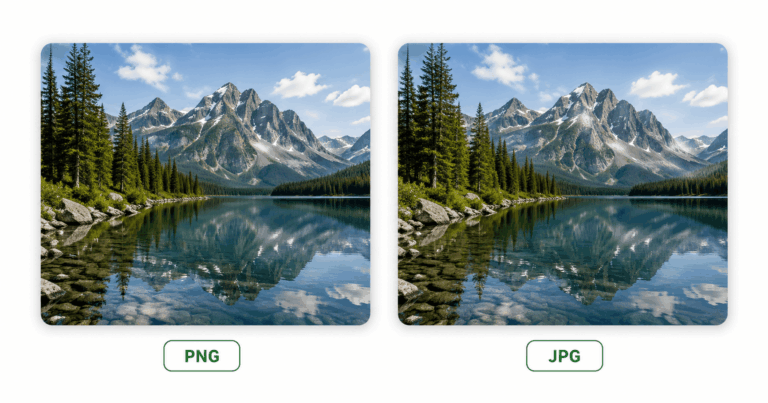
Yes — JPG uses lossy compression, so some data is discarded. However, at 80-90% quality the difference is invisible for photographic content. For logos and text-heavy graphics, quality loss is more noticeable — keep those as PNG.
How do I convert PNG to JPG on Windows?
Open the PNG in Microsoft Paint, go to File → Save as → JPEG picture, and save. This is the fastest built-in method on Windows — no extra software needed.
How do I convert PNG to JPG on Mac?
Open the PNG in Preview, go to File → Export, select JPEG from the Format dropdown, adjust the quality slider to 80-90%, and click Save.
Can I convert multiple PNG files to JPG at once?
On Mac, you can select multiple PNG files in Preview and export them all at once via File → Export Selected Images. On Windows, use the online converter or a batch tool. Our free image converter handles individual files quickly with no size limits.
Convert PNG to JPG in Seconds — For Free
For most people, the online converter is the fastest and simplest option — no software, no account, and your images stay private. For professional workflows requiring specific quality settings, Preview on Mac or Photoshop give you full control.
Just remember: if your PNG has a transparent background, converting to JPG will fill it with white. Keep the original PNG if you’ll need the transparency later.
Convert PNG to JPG Free — Right Now
Browser-based · No file uploads · No account · Any device
🖼️ Convert PNG to JPG — Free